While the appearance of Meta AI on Messenger brings many smart features, it can sometimes feel intrusive or annoying due to continuous notifications. If you are looking to “declutter” your chat interface, check out this detailed guide on how to turn off meta AI on messenger.

How to turn off meta AI on messenger?
Messenger does not currently provide a button to permanently delete Meta AI from the main interface, but you can completely turn off notifications and hide it by following these steps:
-
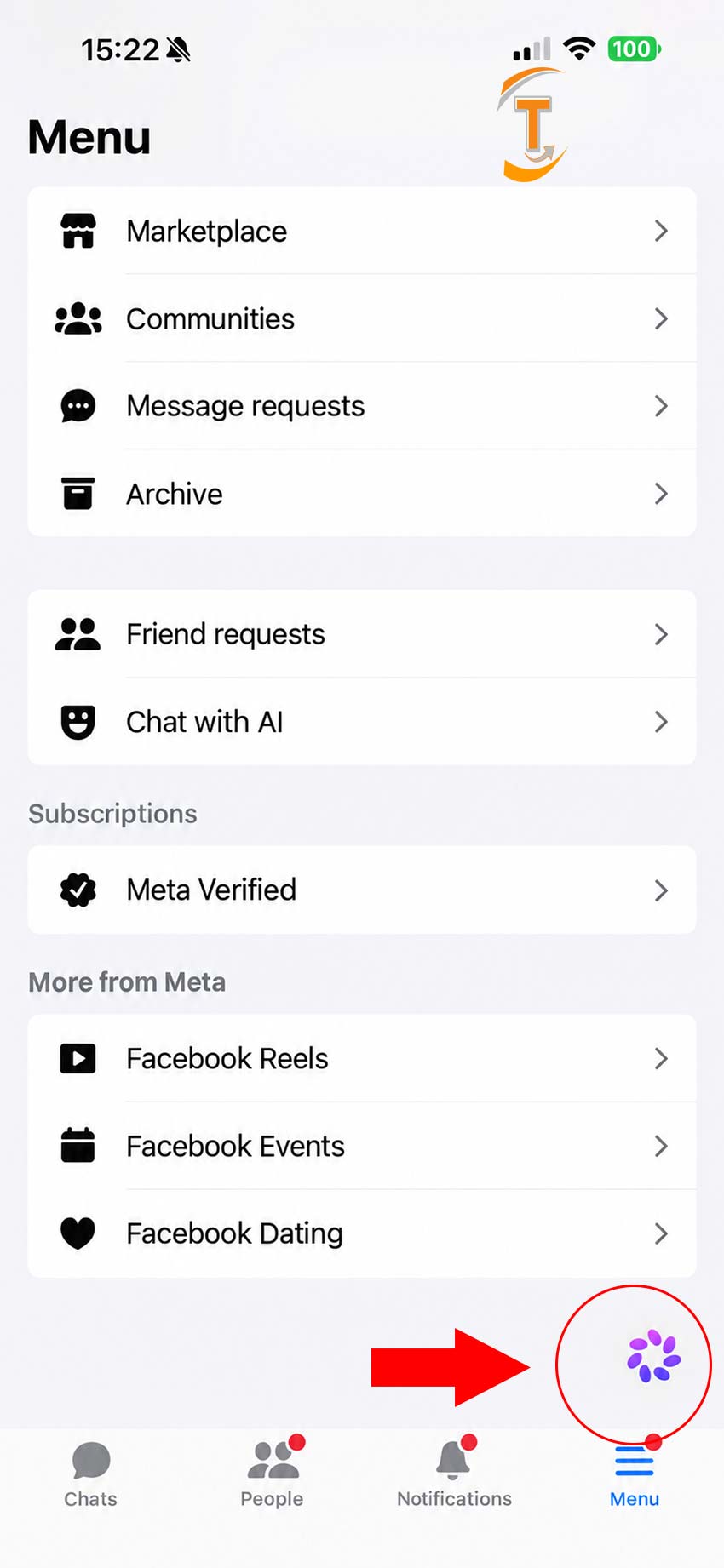
Step 1: Open the Messenger app on your phone and select the chat with Meta AI.
-
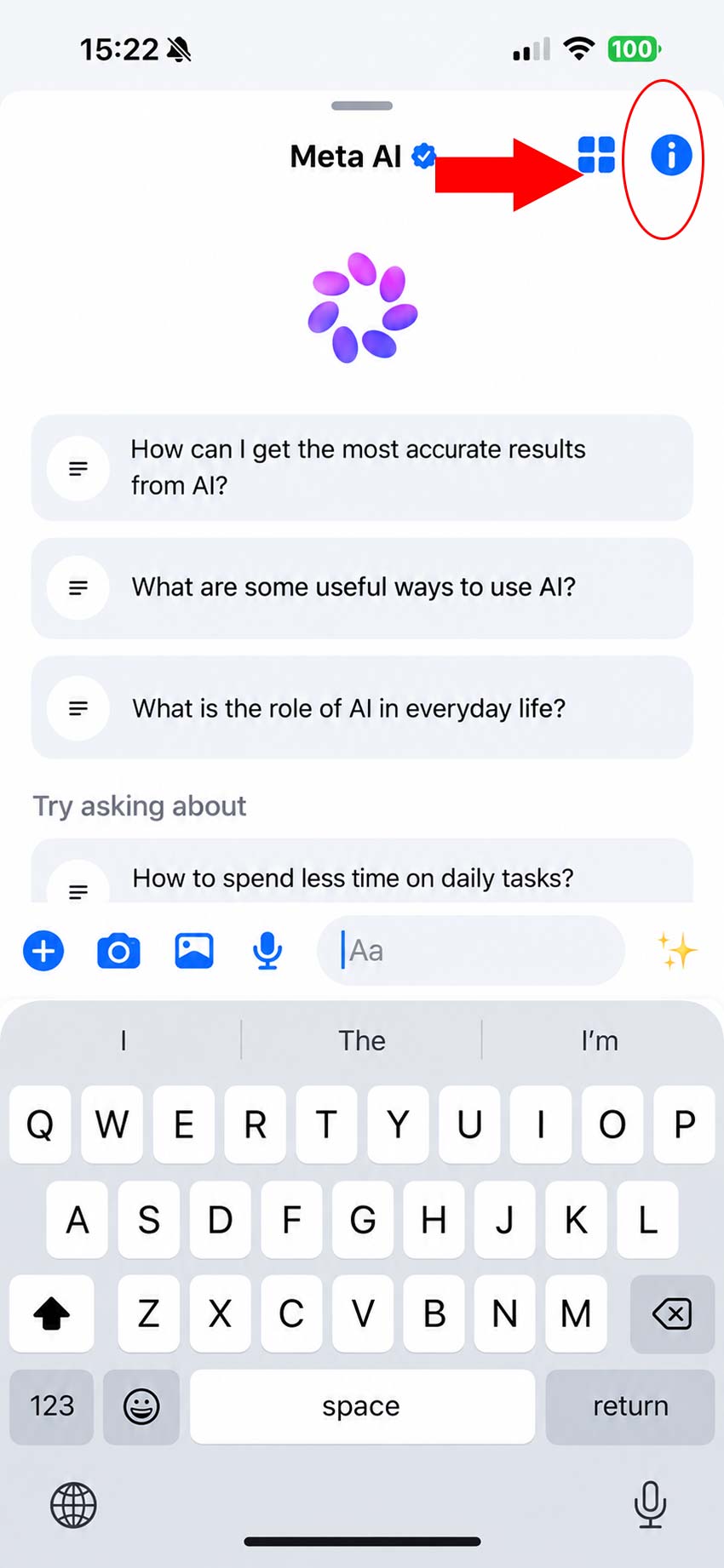
Step 2: Tap on the blue (i) icon located in the top-right corner of the chat screen.
-
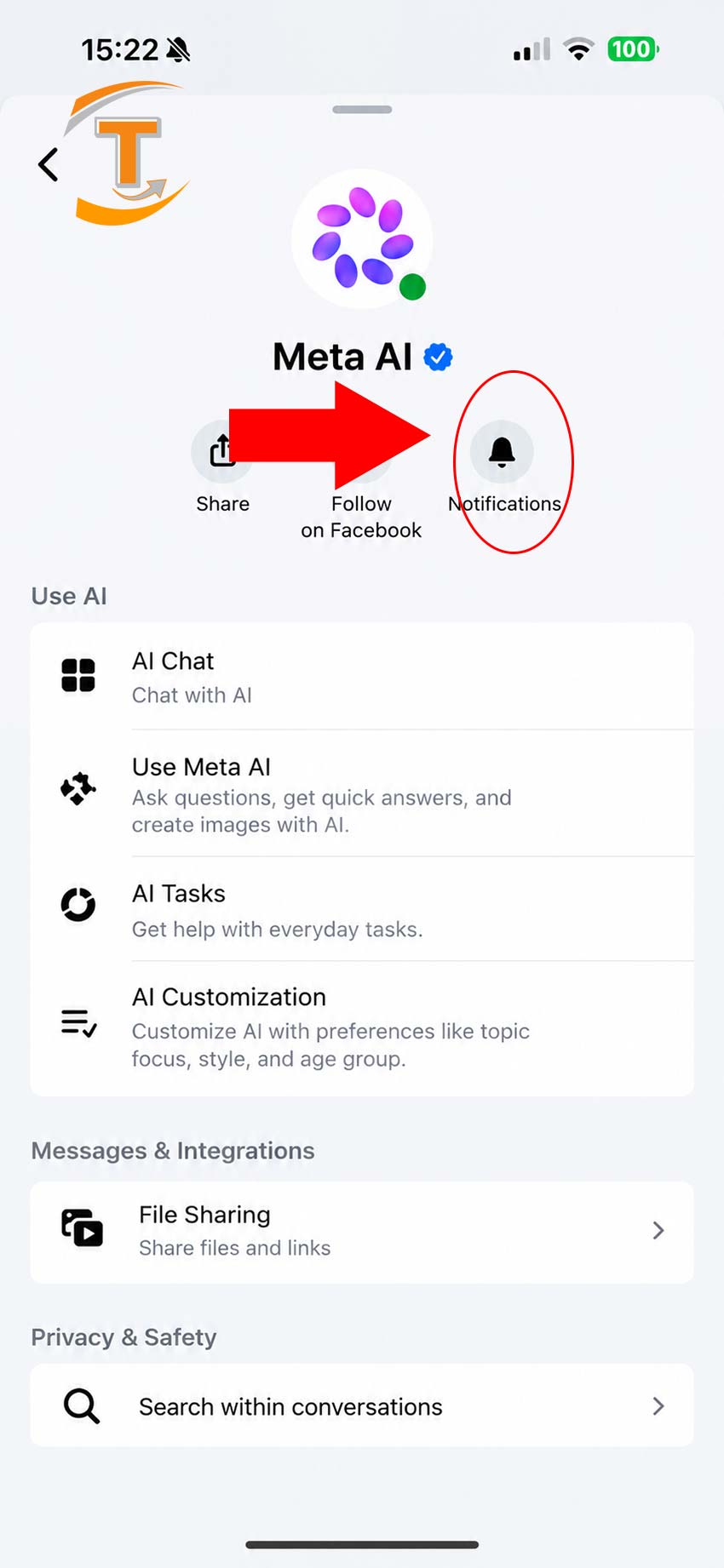
Step 3: Find and select Mute.
-
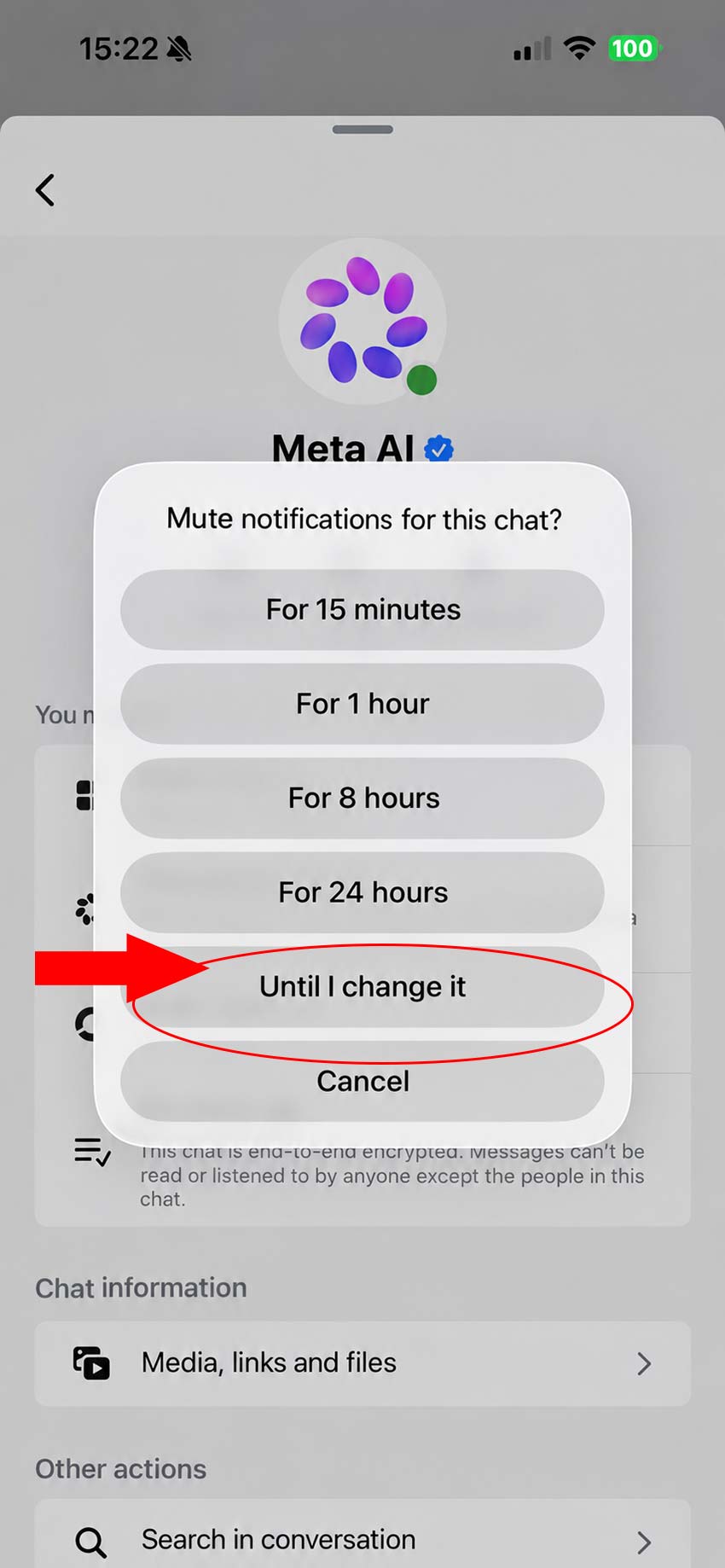
Step 4: In the duration options menu, select Until I change it to completely disable notifications from this AI until you manually turn them back on.
How to Re-Enable Meta AI on Messenger When Needed
If you want to use the smart features of this virtual assistant again after some time, you can easily reactivate it:
- Step 1: Open the Messenger app on your phone and select the chat with Meta AI.
-
Step 2: Tap on the blue (i) icon in the top-right corner of the chat interface.
-
Step 3: Tap on Mute (or notification settings).
-
Step 4: Select Unmute (or choose your desired notification duration) to restore it to its original state.
» Click more: How to find unread messages in Messenger on iPhone
Important Notes When Using Meta AI Messenger
- Muting notifications using the steps above only helps hide annoying messages and stops push notifications from Meta AI. Depending on Meta’s app updates in different regions, button layouts may slightly vary, but the basic setup steps remain the same.
-
Meta AI is directly integrated to help you quickly search for information, generate images, and answer questions right inside the chat app.
-
You can freely hide or re-enable it at any time without worrying about losing your past chat history with the AI.
» See more: How to block someone on Messenger but not Facebook
We hope this article helps you successfully manage your settings and enjoy a more comfortable experience while using Messenger. If you have any questions about Messenger, please leave a comment below and we will answer right away.